In this 1:17 tutorial you will learn how to choose dates and keywords, preview a report and download it in the right format for your plan.
What you will learn
- Choose a date range and read the Report Preview
- Scope the report to specific keywords, or select Clear to report on all of them
- Excel on every plan, PDF on Growth and above, PowerPoint on Professional and above, and what is inside each file
Chapters
Good to know
Which plans include PDF and PowerPoint reports?
Excel exports are on every plan, the branded PDF report is on Growth and above, and the PowerPoint deck is on Professional and above.
What is inside a report?
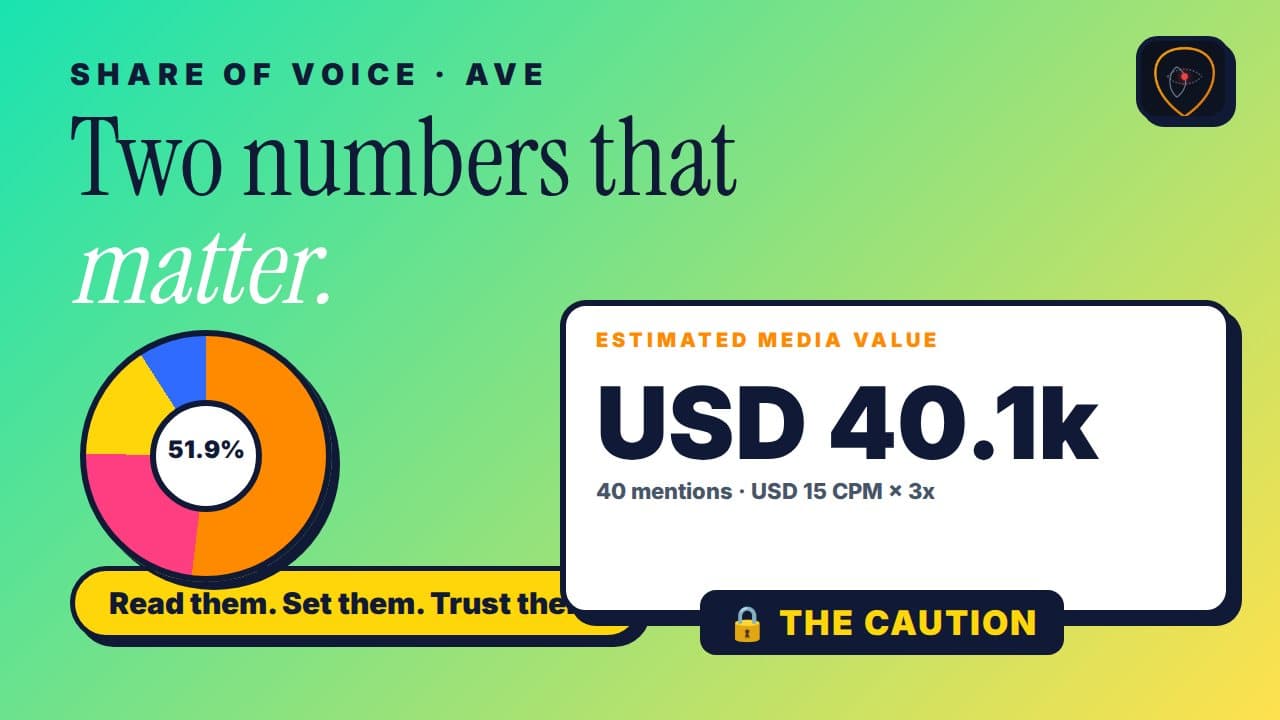
An executive summary, severity and sentiment breakdowns, Share of Voice, Estimated Media Value (AVE) and your top incidents, for the dates and keywords you choose.
Transcript
Read the full transcript
Need to show your team, or your client, what happened? Reports does it in one click. Stay to the end to see what is inside the file.
Open Reports. The Report Preview shows what your file will contain, for the date range you chose at the top. To focus on one topic, scope the report to specific keywords.
Select Clear to report on all keywords. Choose a format. Excel is on every plan.
PDF is on Growth and above. PowerPoint is on Professional and above. A padlock means your plan does not include it yet.
Here is the same screen on Professional: all three are open. Select Download. The file is generated on demand, and includes Share of Voice and your media value.
Here is what you get. Pick dates. Pick keywords.
Pick a format. Next, Ask BrandsLens. com to get started.